Welcome to Manatraders
Everything you need to go from a fresh account to sitting down for your first match. Six chapters, in order, each one short. If you would rather watch than read, every chapter has its video attached — the whole series runs about nine minutes.
 Video: What is Magic Online?
1:37
Video: What is Magic Online?
1:37
New to Magic Online entirely? Start with the video above — it explains what the platform is and how renting fits into it before you install anything.
Create your account
The account that links your subscription to your Magic Online username.
Your Manatraders account is what links your subscription to your Magic Online username. Everything else in this guide happens either inside the MTGO client or on this site, and the two talk to each other through that username.
Download Magic Online
Install the client, create your MTGO account, and turn on two-factor authentication.
 Video: Account Setup and 2FA
1:32
Video: Account Setup and 2FA
1:32
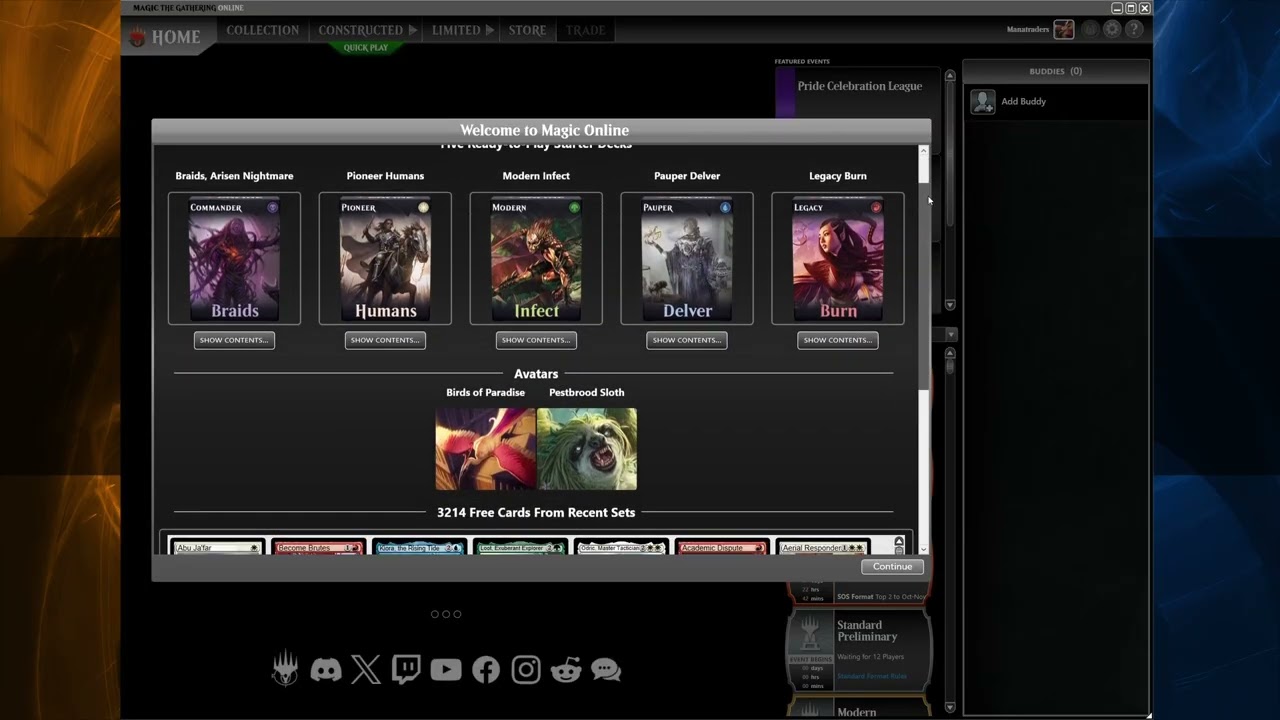
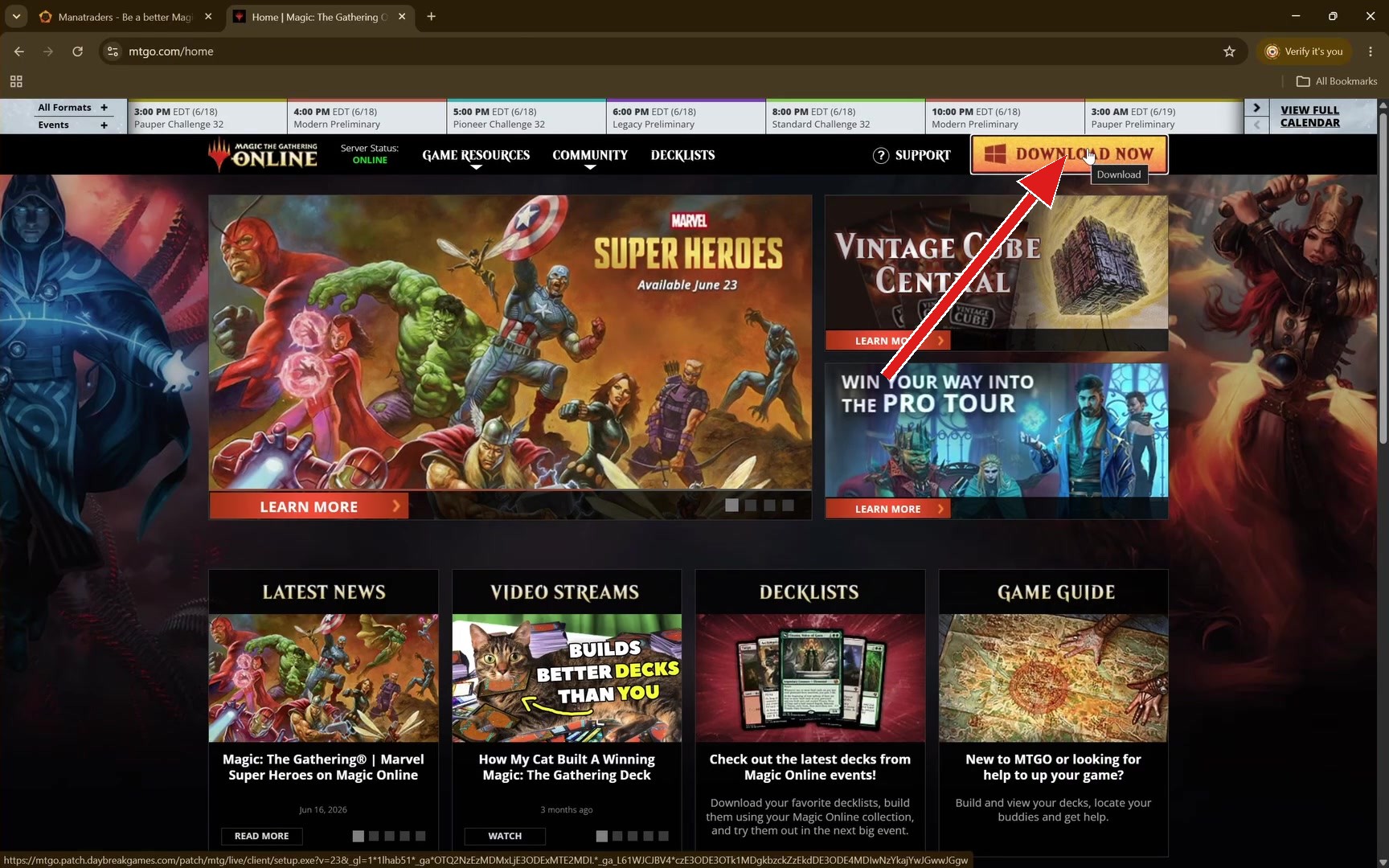
Magic Online is a Windows client. Download the installer straight from Daybreak at mtgo.patch.daybreakgames.com, or use the Download button on mtgo.com. On macOS or Linux you will need a compatibility layer such as Wine or a Windows virtual machine — plenty of players do this, but budget some extra setup time.
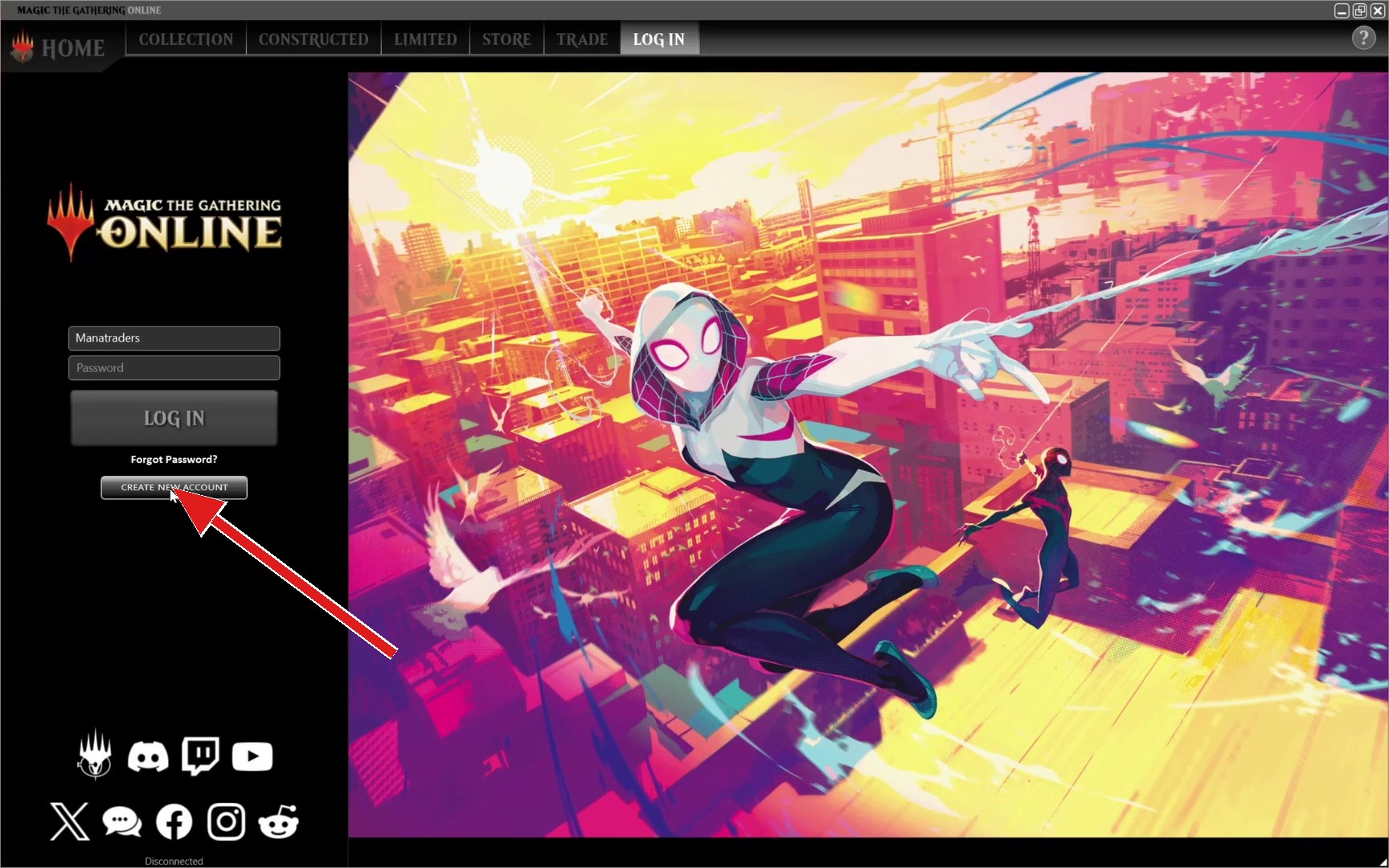
Run the installer, then pick Create New Account on the client login screen. Use an email address you can actually reach — MTGO sends your confirmation there, and later your two-factor codes.
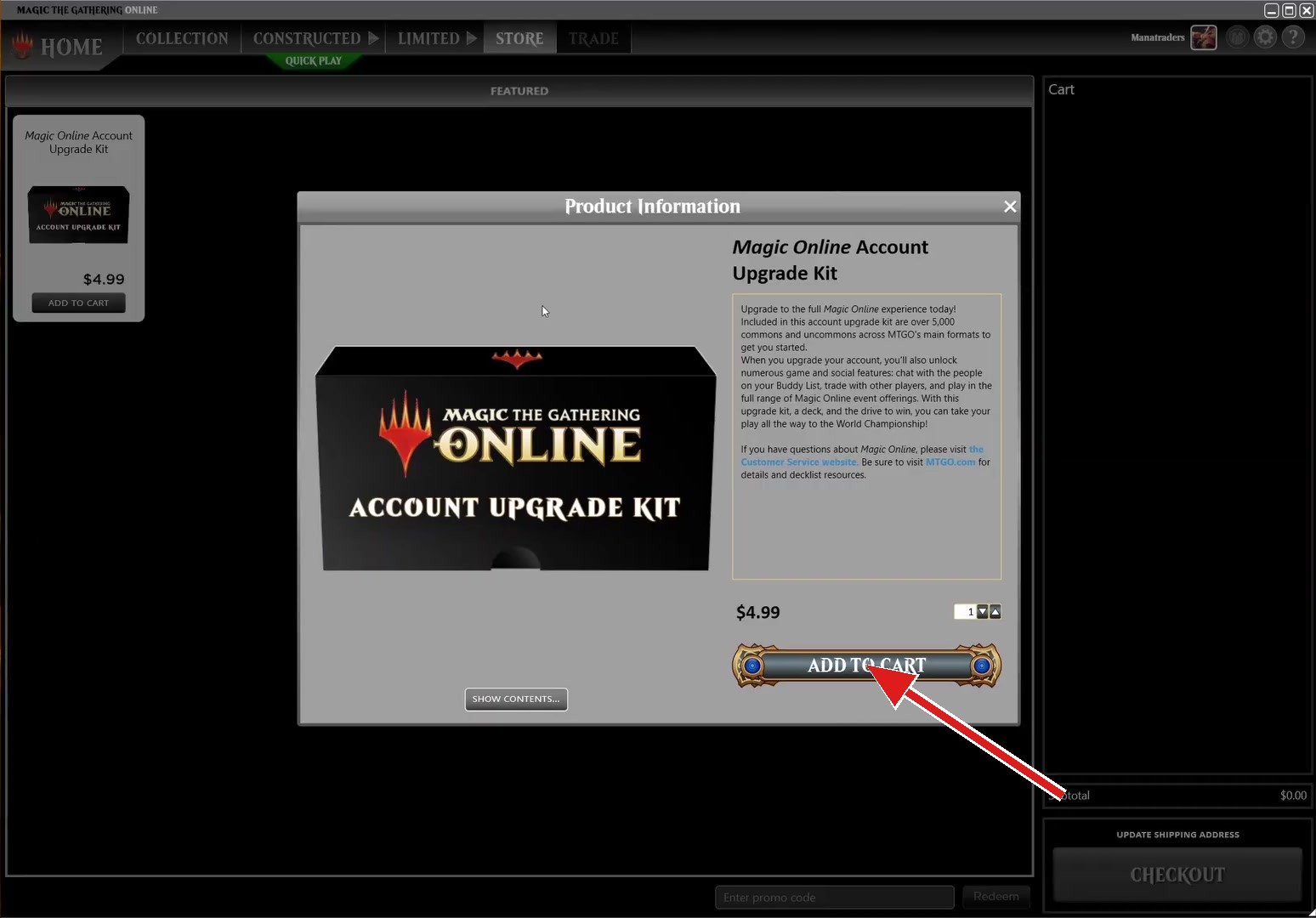
Once you are logged in, open the Store tab and buy the Account Upgrade Kit for $4.99. This is not optional: a free MTGO account cannot trade, and trading is how rented cards reach you.
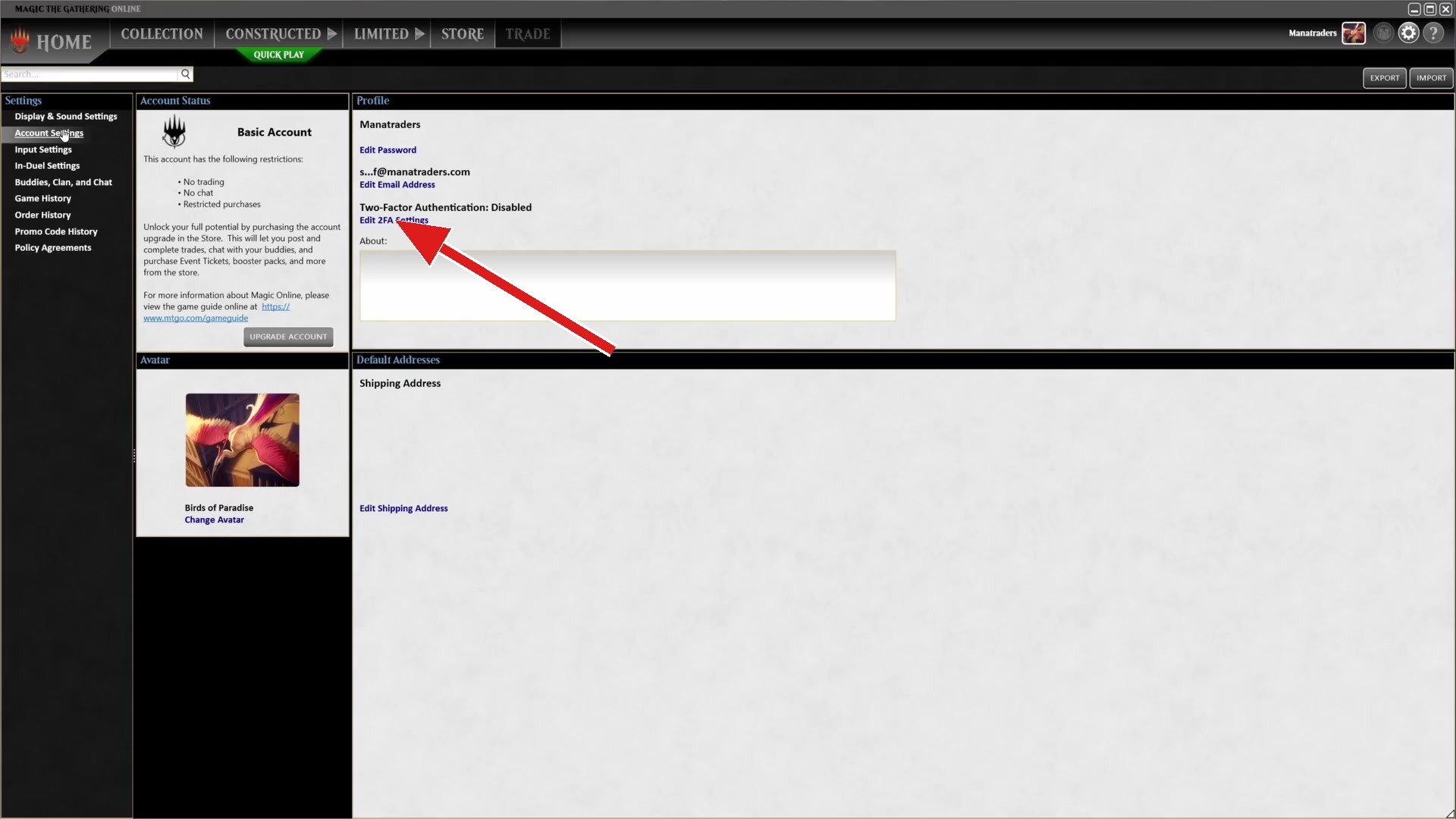
Last, turn on two-factor authentication. This one is mandatory, not a recommendation: MTGO will not let our bot open a trade with an account that has 2FA switched off, so with it disabled your rented cards simply cannot reach you. Turn it on before you rent anything. Open Account Settings from the left-hand menu — the Profile panel shows Two-Factor Authentication: Disabled with an Edit 2FA Settings link under it.
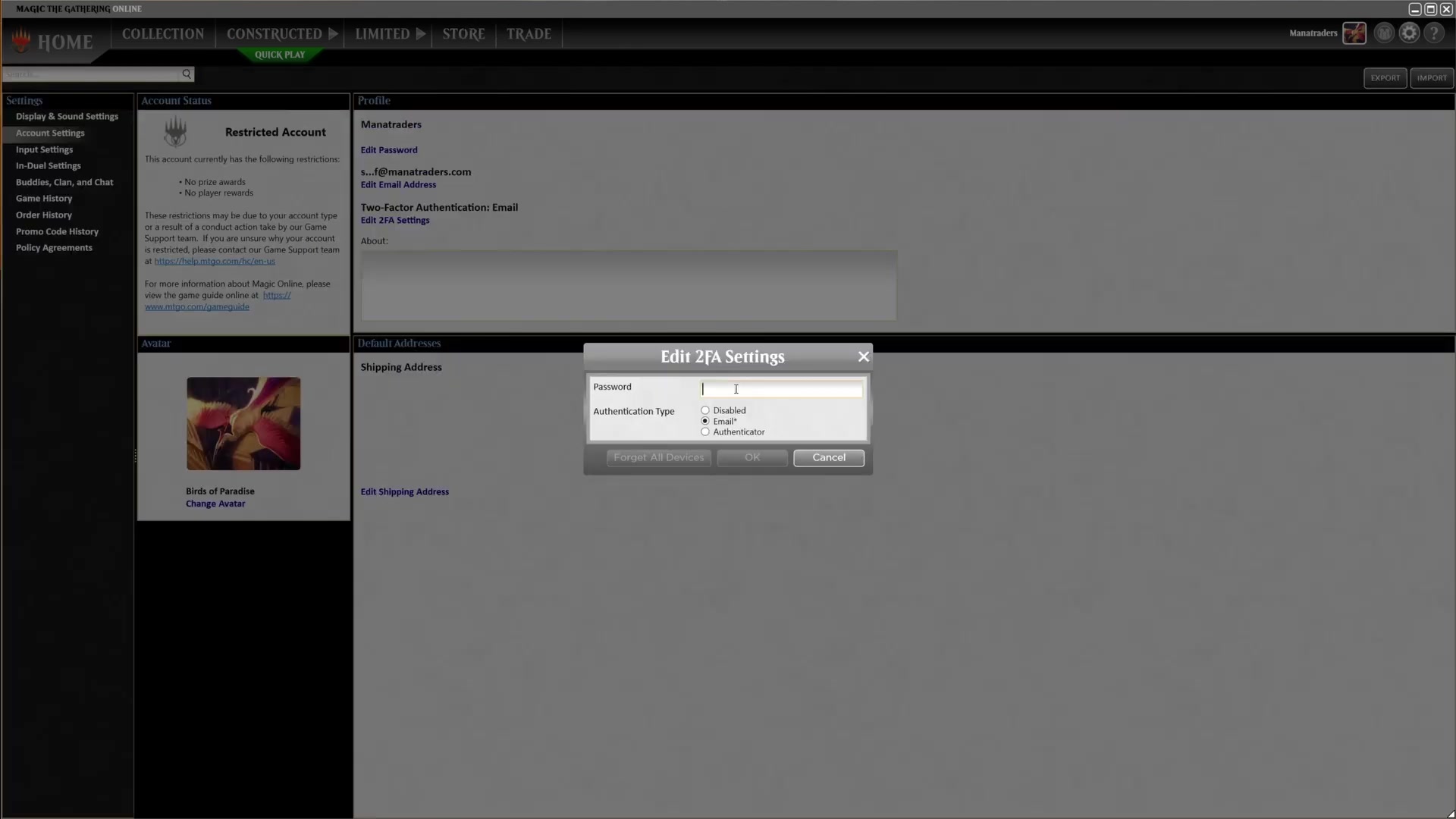
Click that link, enter your password, and choose how codes reach you. Email sends them to your registered address; Authenticator pairs an app such as Google Authenticator or Authy. Authenticator is the stronger of the two, Email the quicker if you would rather not install anything. Save, and the Profile panel will read Enabled.
Wizards publish their own walkthrough at mtgo.com/news/mtgo-2fa-53023 if you want a second description of the same steps.
Rent your first deck
Pick a deck, hit rent, and collect the cards from our bot in a couple of minutes.
 Video: Rent Your First Deck
2:01
Video: Rent Your First Deck
2:01
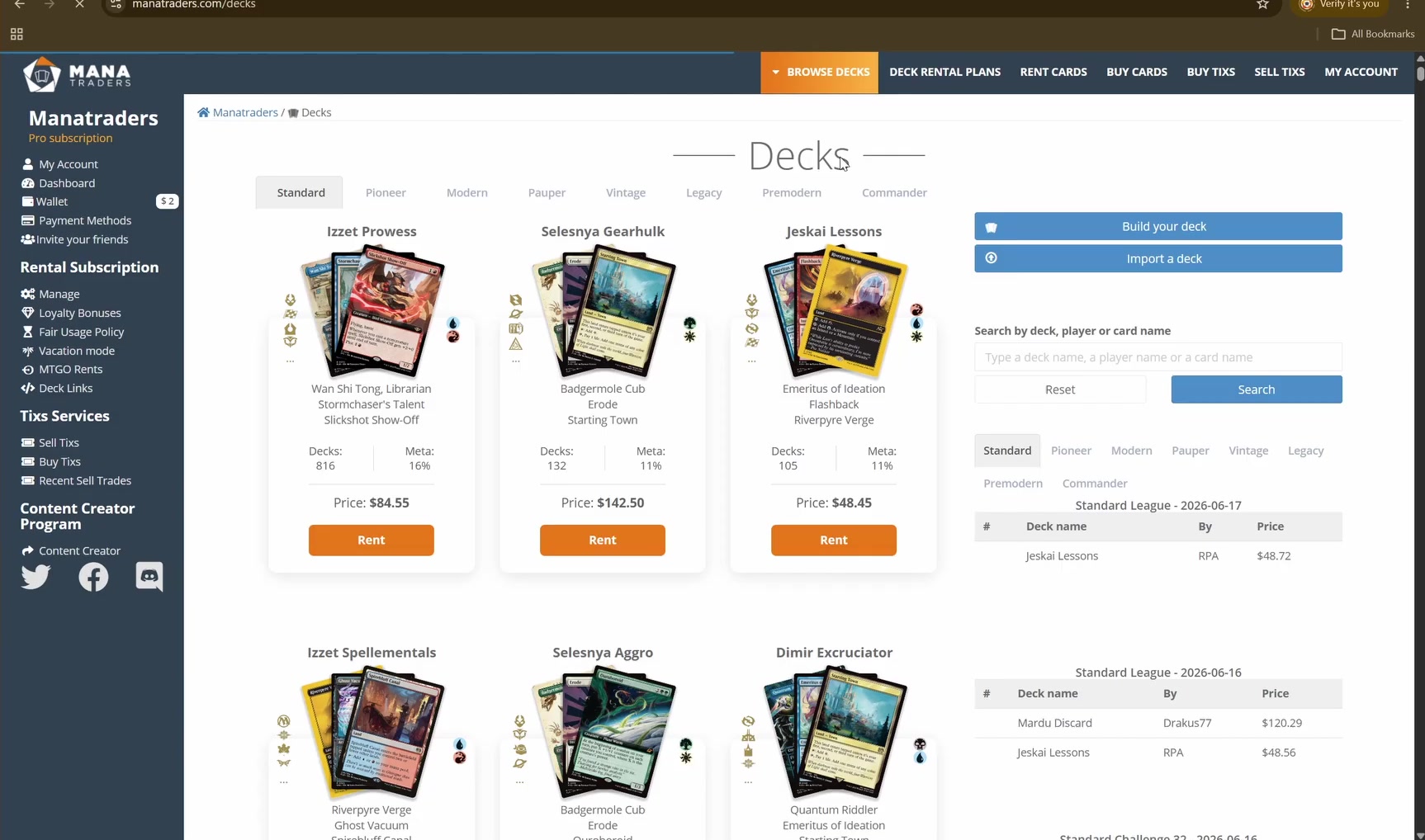
Open Browse Decks and pick a format along the top. Every deck lists its full rental price, so you can see what a list costs before committing to it. Rent a published decklist as it stands, tweak one in the Deck Builder, or build something from scratch card by card — the catalog is the same either way.
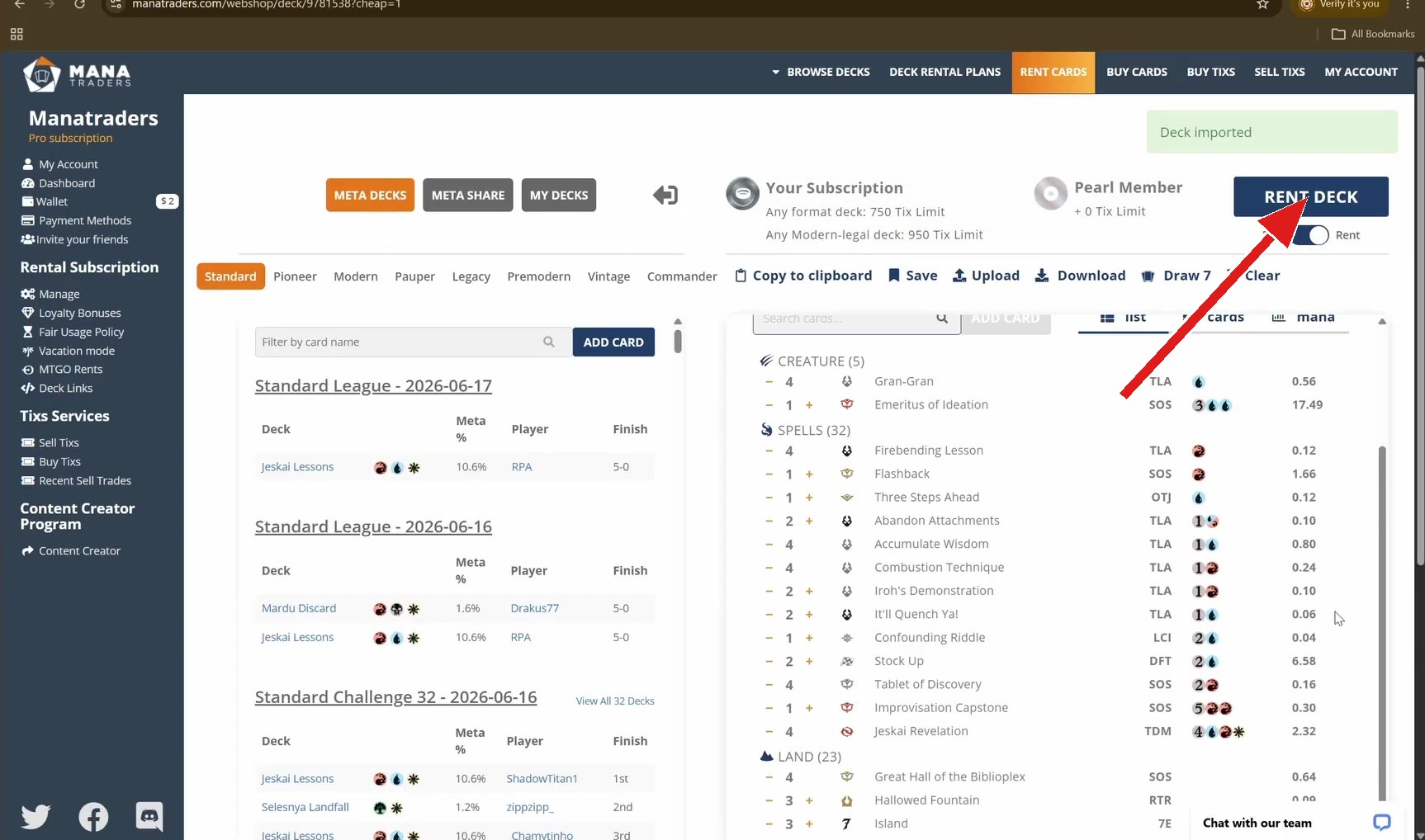
When you are happy with the list, click RENT DECK — the blue button at the top right of the builder.
Confirm your MTGO username and press Rent. That name is what our delivery bot searches for, so check it character by character before you continue.
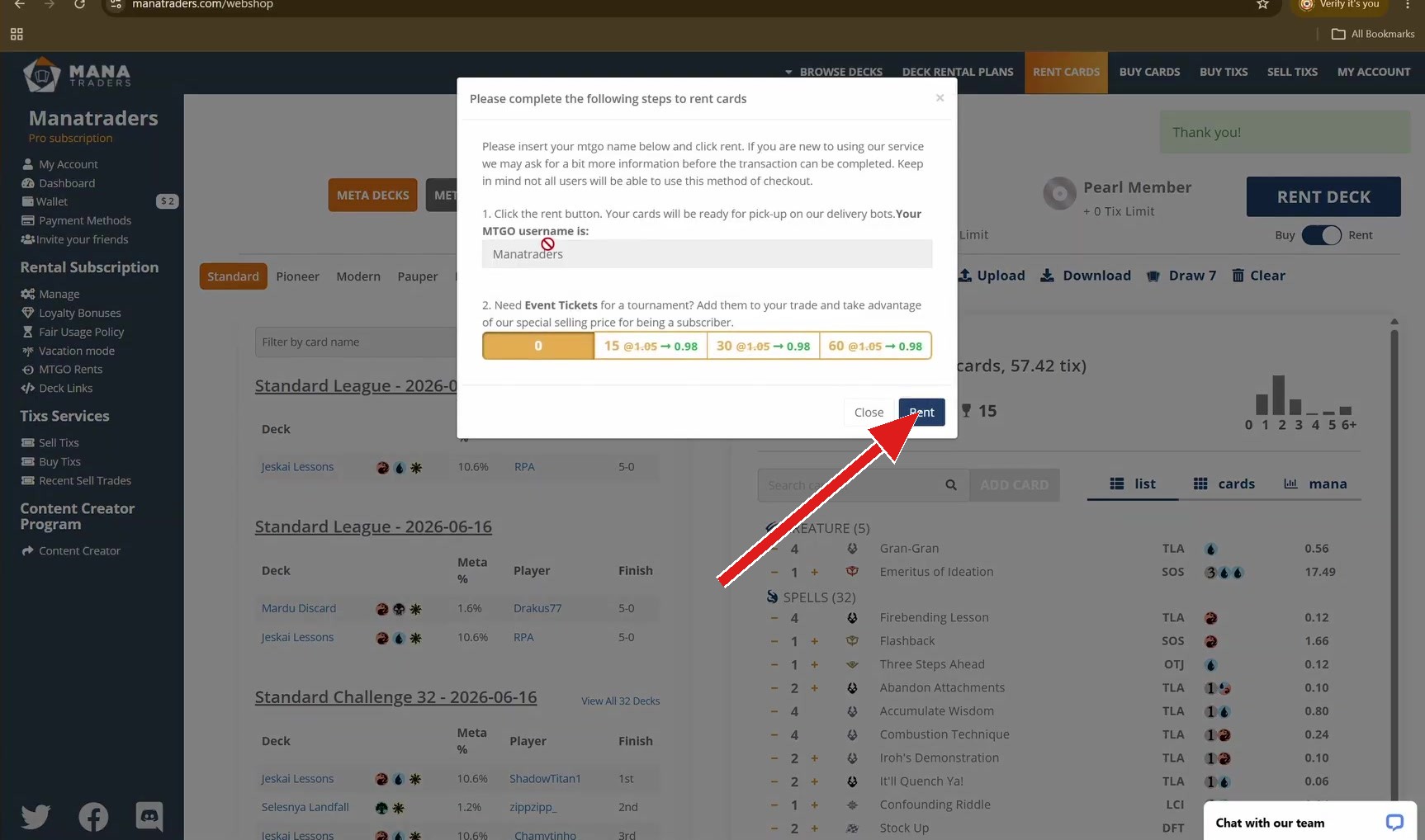
The bot then messages you inside the MTGO client and opens a trade. Accept it, and it lists your cards in the chat window — but the cards do not move across on their own. You have to pick them up yourself. Click the first card on the bot's side, press Ctrl + A to highlight all of them, then drag them into the trade area. If some of them are not showing, click RESET ALL FILTERS in the top-left corner of that panel — a filter left on from an earlier session is almost always the reason.
Once every card is in the trade area, click Submit. The bot confirms, and the cards land in your collection straight away and stay there for as long as your subscription is active.
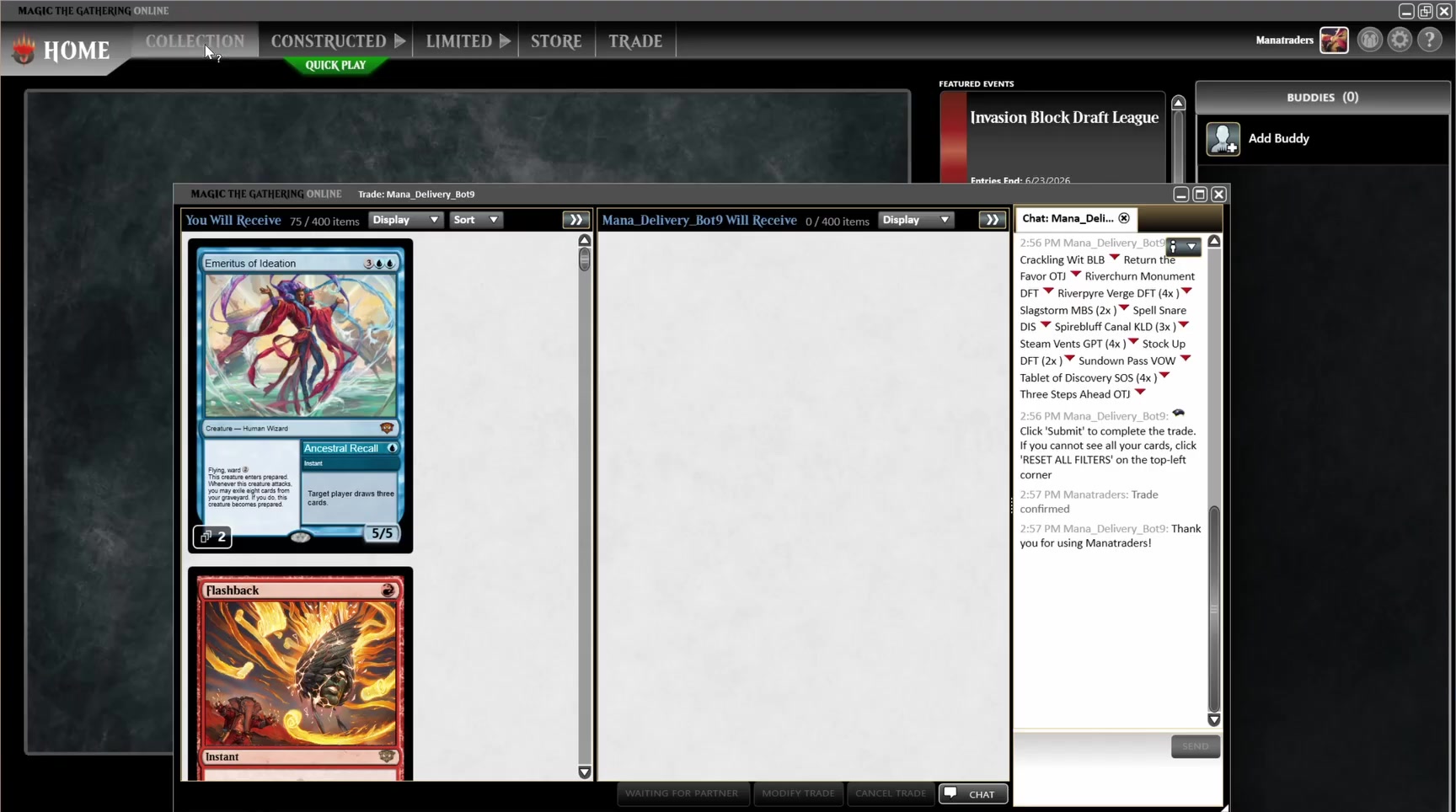
Swapping decks costs nothing. Return what you have from your Dashboard, rent something else, as often as you like within your plan's fair usage. Most people rent a deck, play it for an evening, and try something completely different the next day — that is the whole point of the service.
Play your first match
Find a queue, sit down, and get your first games in.
 Video: Play Your First Match
2:10
Video: Play Your First Match
2:10
In the client, open the Constructed tab and pick your format down the left. For a first game choose Open Play or Tournament Practice — both are free, both are casual, and neither costs you anything if it goes badly. Tournament Practice tends to have stronger, more competitive decks; Open Play is friendlier. Select your deck on the right, then hit the green PLAY button.
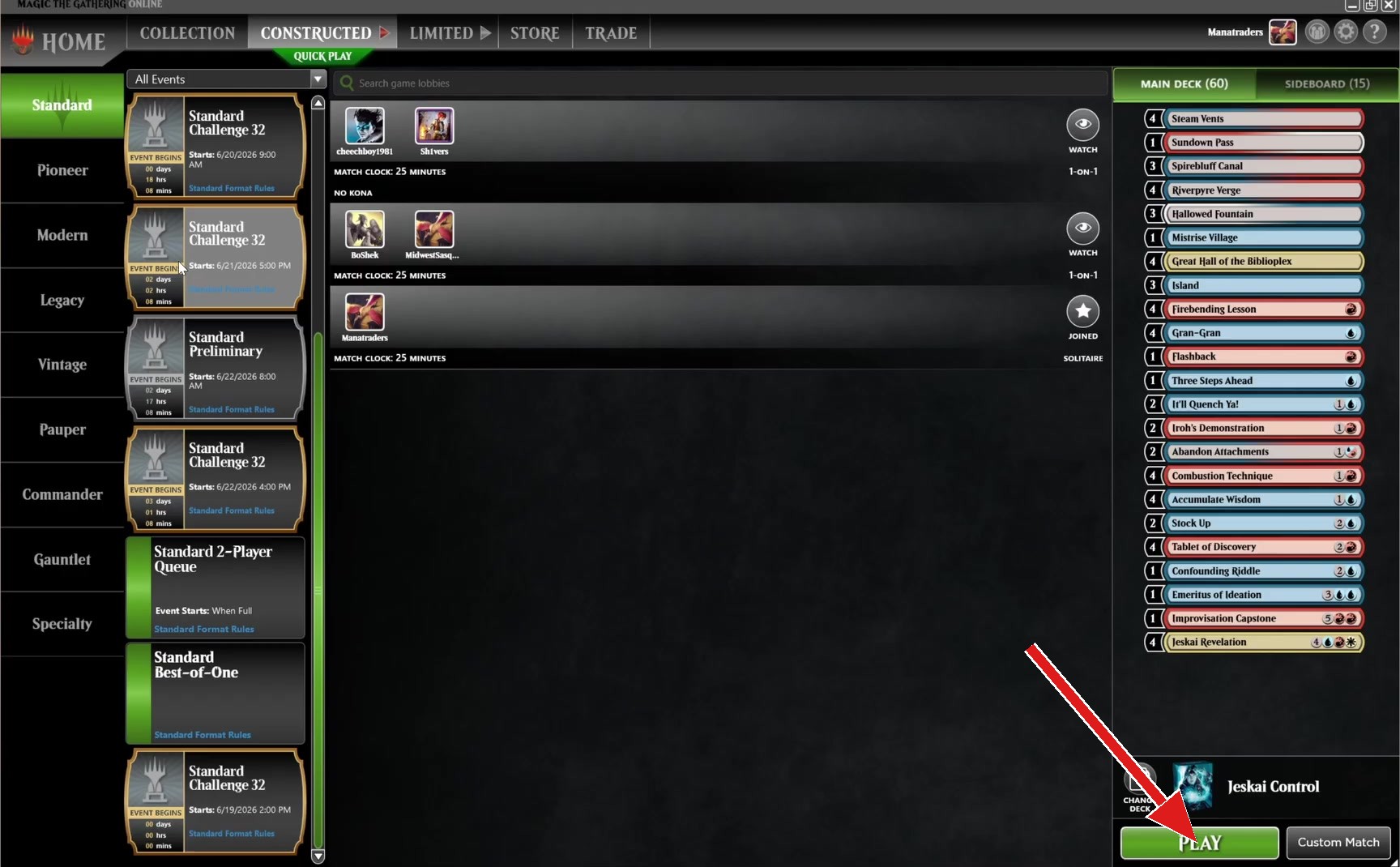
You will be paired with an opponent and dealt seven cards. Decide whether to Keep or Mulligan — the buttons sit at the top left, and your hand runs along the bottom of the screen.
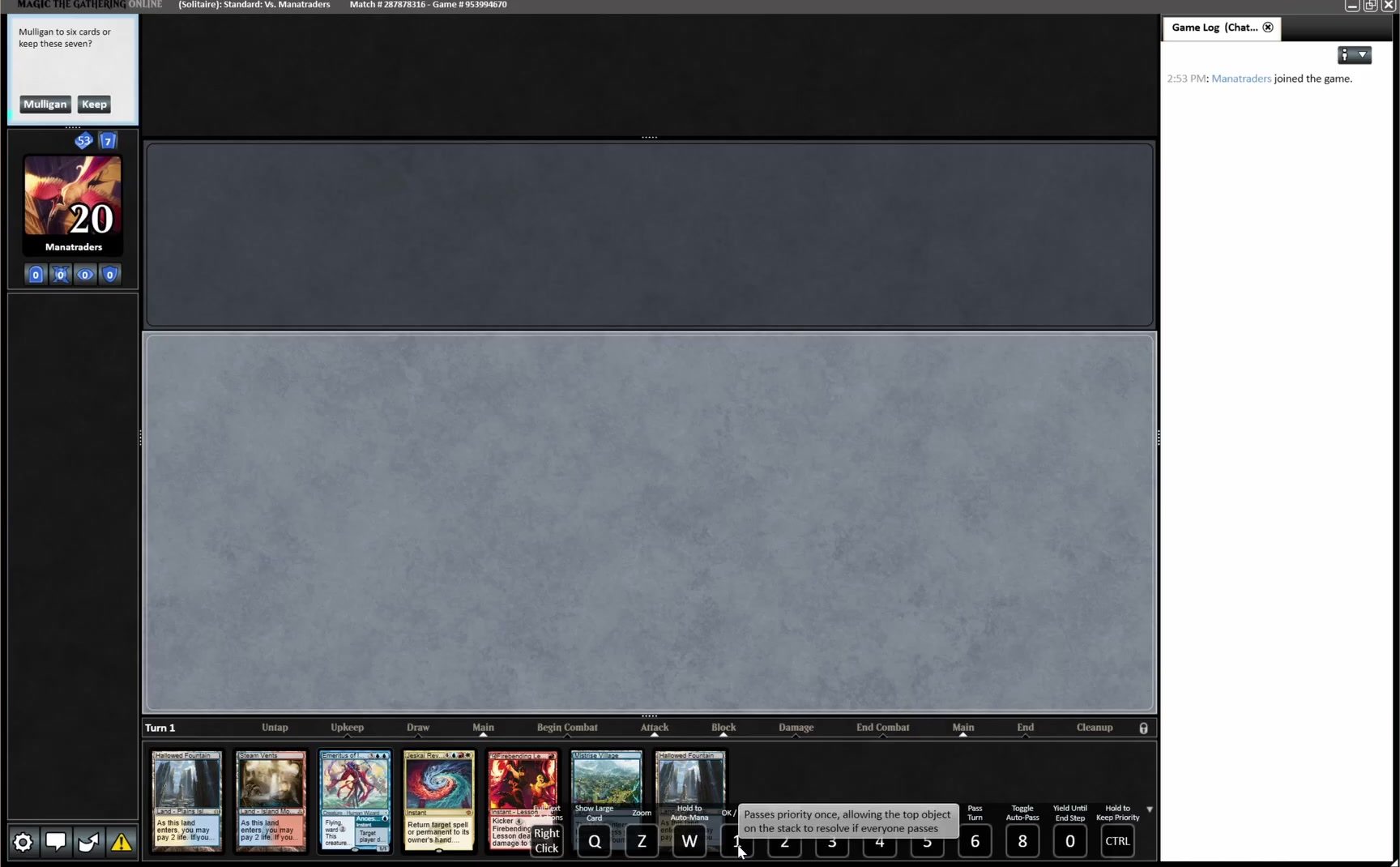
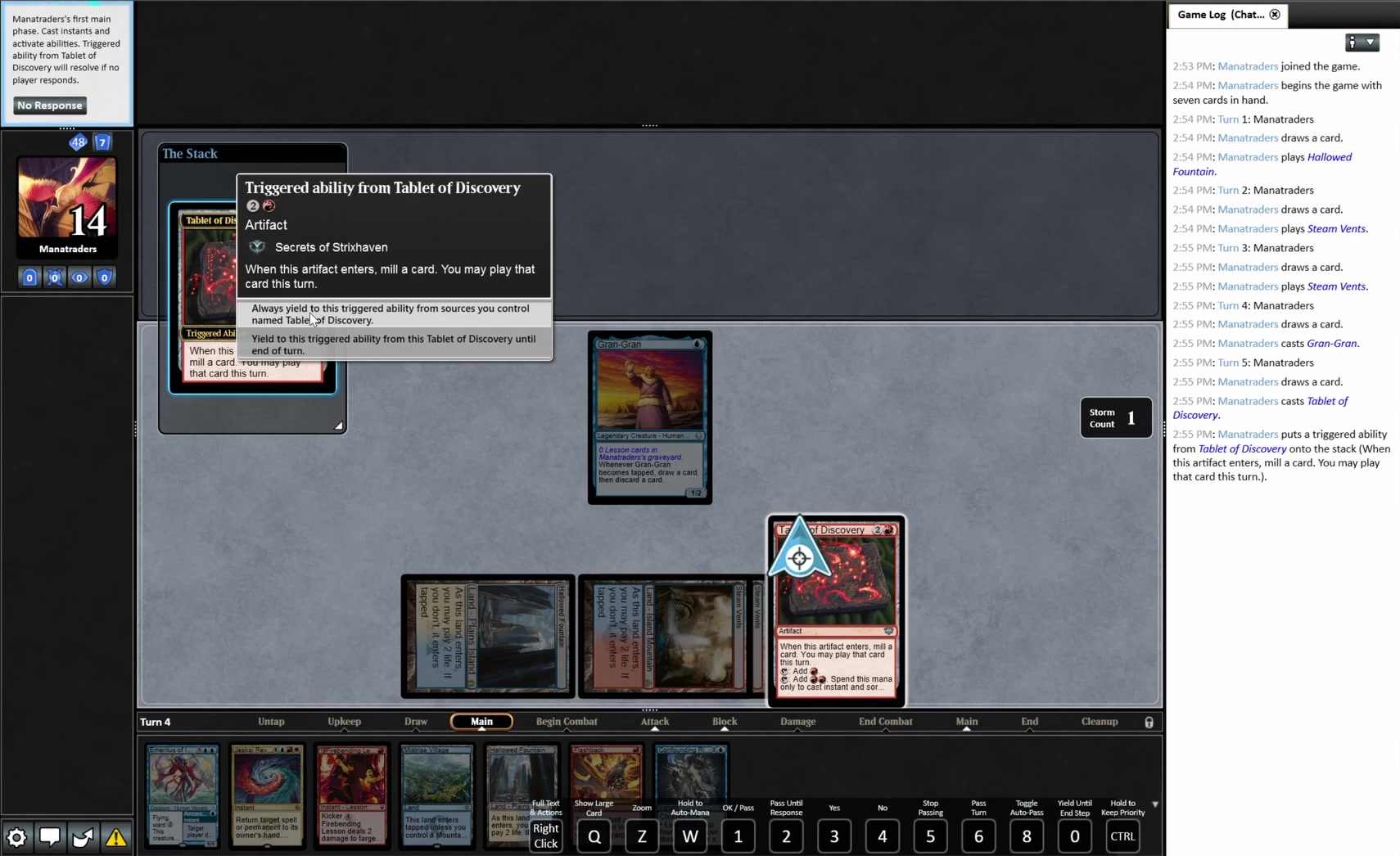
From there it is just Magic. Two things worth learning on day one: holding a modifier key to auto-yield priority speeds games up enormously, and the Game Log on the right is where you check what actually happened. Both are configurable under Display & Sound Settings, and Wizards keep a full Game Guide if you want the detail.
When you feel ready, Leagues are the natural next step. You play five rounds at your own pace over several days, which suits a rental service well — you can hold one deck for the whole run.
Return your cards
Done playing? Send the cards back so they are ready for the next player.
 Video: Return Your Cards
1:12
Video: Return Your Cards
1:12
When your play session is over, return the cards. On your Dashboard press Request a trade & Return cards and one of our bots opens a trade with you inside the MTGO client. Accept it: the bot selects only the cards you have out on rent, nothing else in your collection is touched. Check the list and click Submit.
You can also start it yourself. Open a trade with any of our mana_return bots, make sure ALL your cards are set to tradeable, and the bot picks out the rented ones on its own. Confirm the trade and you are done.
Return the cards when you are done with them rather than holding on to them between sessions. That is what our fair usage policy asks, and it keeps decks in stock for everyone. Renting again next time costs nothing extra.
Join the Discord
Deck help, metagame talk, and the people who actually play this game.
The Manatraders Discord is where the community lives. Deck help, weekly metagame reports, league signups, and a steady stream of people arguing about whether a card is good.
It is also the fastest way to get a human answer about your account. Staff are in there daily, and most questions get answered before a support email would have been opened — though you can always reach us on LiveChat or at [email protected].
If you are returning to Magic after a break, this is the single most useful thing on the list. The format you remember has almost certainly moved on, and someone in there will happily tell you how.
That's the whole thing
You have an account, a client, a deck, a match, and somewhere to ask questions. Everything from here is just playing Magic.
Stuck on something? Reach us on LiveChat or at [email protected]. This guide lives in Settings if you want to come back to it.
 English
 Italiano
 Français
 Español
 Português
 Deutsch
 Nederlands
 Polski
 日本語
日本語